What’s the Easiest Way to Get Google Apps on Huawei?
Huawei users often find it challenging to access Google apps and learn how to use google play store on huawei devices that don’t support Google Mobile Services. This blog explores several methods to alleviate this issue, focusing on simplicity, efficiency, and security. Whether you’re looking for a straightforward solution or advanced tweaks, we’ve got you covered. We’ll delve into popular options like GBox, microG, Aurora Store, APKs, and Huawei’s own Petal Search. Each approach comes with its strengths, weaknesses, and practicality, ensuring you find the best method to fit your needs. By following our step-by-step guides, you can enjoy Google features like Gmail, YouTube, and Maps, bringing convenience and familiarity back to your Huawei device.

The Easiest Way for Most People: Use GBox from AppGallery
What GBox is and why it’s beginner-friendly
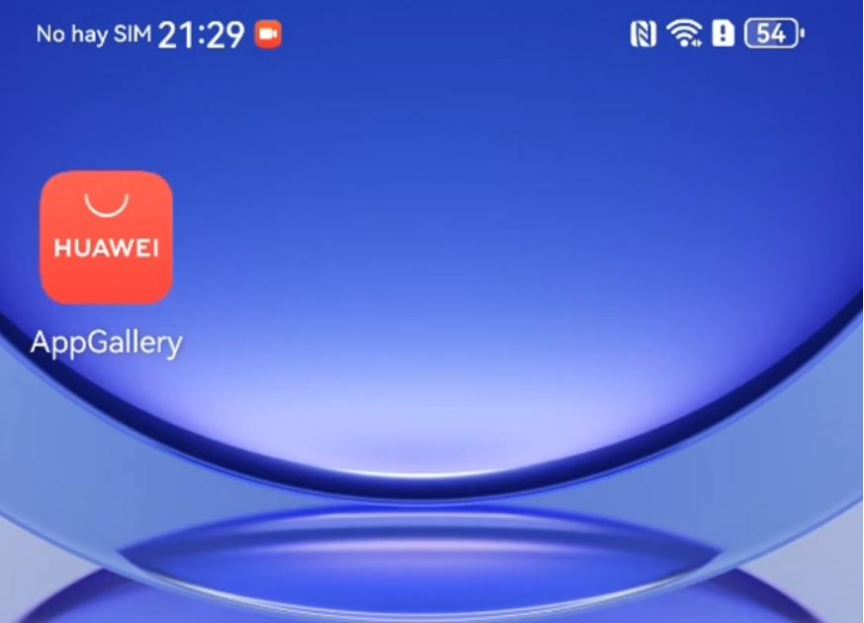
GBox is an application emulator available through Huawei’s AppGallery that allows you to run Google apps seamlessly. Designed with user-friendly features, GBox simplifies the process for beginners by providing an interface akin to running Google Mobile Services directly on your device. With a straightforward setup, non-tech-savvy users can install and use popular Google apps like Gmail, YouTube, and Maps without complexity. The ease of access and minimal configuration make GBox an appealing choice for those who want a hassle-free experience without delving into technicalities. The convenience of GBox lies in its ability to mimic familiar Google environments, bringing functionality to your fingertips efficiently.
Step-by-step: install GBox and sign in safely
To start using GBox on your Huawei device, open the AppGallery and search for GBox. Download and install the application following the on-screen instructions. Once installed, open GBox, where you’ll find a selection of Google apps ready for access. Before signing in, ensure your internet connection is secure—this helps protect your credentials. Navigate to the desired Google app within GBox and enter your username and password in the standard Google login process. The emulator facilitates a secure sign-in environment by maintaining encryption protocols similar to those found on native Android devices. After signing in, you can freely navigate and use the apps as if running directly on an Android platform. Regularly update GBox through AppGallery to maintain security and optimal functionality.
Best Google apps to run inside GBox (Gmail, YouTube, Maps)
Once you have GBox set up, there are certain Google apps that function particularly well. Gmail, YouTube, and Maps are the top picks for using within GBox. Gmail allows seamless email access, offering the same experience as on other Android devices. YouTube provides smooth video streaming without lag, keeping entertainment options at your fingertips. Google Maps runs efficiently, providing accurate navigation and search results as expected. These apps are optimized within GBox, giving Huawei users a similar experience to Google Mobile Services directly on a device that lacks native support.
Common fixes: login errors, slow load, storage issues
Encountering issues while running Google apps in GBox is not uncommon, but simple fixes can solve most problems. For login errors, first verify that your internet connection is strong and stable. In case of persistent issues, reinstalling the problematic app from GBox can resolve authentication concerns. If apps load slowly, clearing the GBox cache may improve speed and responsiveness. Navigate to the app settings within GBox and select ‘Clear Cache’ for better performance. Storage concerns might arise if apps consume too much space. It’s advisable to regularly clean up unused files and apps inside GBox. Should storage limits persist, consider expanding your device’s memory with external storage options. These common fixes ensure a smooth experience when using Google apps within GBox.
The Clean Alternative: microG + Aurora Store
What microG does and when it’s the better choice
microG is an open-source implementation of Google’s proprietary Android user space apps and libraries. It allows devices without Google Play Services to run apps that depend on them, ensuring a cleaner and Google-free existence while maintaining functionality. microG is perfect for tech-savvy users who desire greater control over their device with fewer dependencies on Google. Its open-source nature prioritizes privacy and customization, providing a sophisticated alternative to the traditional Google framework. Advanced users prefer microG when seeking flexibility, especially for tasks requiring extensive manipulation of app permissions and access. This method is beneficial for those who want the independence of Android without reliance on Google, offering seamless functionality for most apps without compromising user data privacy.
Step-by-step: set up microG the right way
To use microG, begin by ensuring your device’s compatibility with third-party applications and frameworks. Install a custom recovery tool such as TWRP to manage subsequent installations. Download the microG package from a trusted source, then flash it onto your device via recovery mode. Once installed, configure microG by enabling the necessary permissions in the device settings for network and location services. If desired, add a Google account via the microG settings to synchronize app data easily. Regularly update microG to benefit from enhancements and security patches provided by the vibrant community supporting this open-source initiative. Proper setup and configuration enable a reliable and efficient Google app experience, elevated by the freedom and customization options that microG offers.
Step-by-step: use Aurora Store to download Google apps
Aurora Store is an alternative to the Google Play Store and pairs well with microG to download Google apps. Begin by installing the Aurora Store APK from its official site. Once installed, open Aurora Store where you can browse and search for apps similarly to Google Play. To download Google apps, ensure microG is correctly set up to allow authentication. Log in using an anonymous account or link your Google credentials if needed. Select desired apps, and proceed with installation just like within Play Store. Aurora Store enhances app discovery and management, giving users access to the same vast library and updates for apps without direct reliance on Google’s ecosystem.
What works well vs what usually fails
While microG and Aurora Store provide robust access to most Google applications, some, like Google Pay, typically encounter issues because they rely on SafetyNet—a Google-based security protocol often unavailable on microG. Apps needing SafetyNet for secure transactions or identity verification might fail, limiting functions like mobile payments. Additionally, some apps dependent heavily on Google-specific APIs or services might not execute correctly. However, common apps like Gmail, YouTube, and Maps typically run smoothly within this framework. It’s best to research app compatibility before installation to manage expectations and ensure desired functionality. Understanding these limitations helps maintain smooth app experiences without being caught off guard by restrictive protocols.
Fast Option: Install Google Apps as APKs
Where to get APKs safely and what to avoid
Downloading APK files provides a method to manually install apps directly on your Huawei device. Trusted sources, like APKMirror or official developer sites, offer secure APK files without the risk of malicious software. Always verify the authenticity of the source to protect your device from compromised files containing viruses or malware. While many sites host APKs, having less stringent security checks increases risk. Avoid downloading APKs from sites with poor reputations or lacking community verification, as these might expose your device to security vulnerabilities. Sticking to reputable sources ensures safety and integrity while manually expanding app options. It’s crucial to prioritize security while balancing the convenience APKs offer.
Step-by-step: install APKs without breaking security settings
To install APKs safely, begin by enabling ‘Install unknown apps’ in your device settings for browsers or file managers from trusted sources. Download the desired APK file by navigating through the browser to a reputable site like APKMirror. Once downloaded, open the file manager and locate the APK file. Tap to initiate installation, carefully reviewing permissions before proceeding. During installation, ensure no unexpected permissions are granted to preserve device security. Complete the installation and run the app, ensuring it functions correctly. Regularly updating these apps through the same trusted sources maintains security and functionality without compromising settings. This approach allows manual app management, retaining control over device integrity and security.
When APK installs won’t work because GMS is missing
APKs do not always function properly on Huawei devices due to the absence of Google Mobile Services (GMS). Some apps rely heavily on GMS APIs to run specific features, and without them, the apps may crash or fail to load entirely. Apps such as those requiring Google authentication or proprietary Google services are likely to not perform as intended. Before attempting APK installation, verify that the app doesn’t primarily depend on GMS to avoid futile efforts and frustration. Reference community forums or app documentation to understand dependencies, ensuring you navigate this process with the necessary backing information for success.
Huawei’s Official-Friendly Options: Petal Search, AppGallery, and Web Apps
Petal Search: how it helps you find the right app version
Huawei’s Petal Search is an invaluable tool for discovering compatible applications for Huawei devices. It searches across various sources, including official repositories and third-party sites, ensuring broader app availability sans GMS dependence. Users can input specific queries, leading to well-suited app versions that side-step typical GMS pitfalls. Petal Search offers reviews, descriptions, and alternatives, equipping users with informed choices. It simplifies finding apps without requiring technical tweaks or third-party setups, streamlining access for those preferring hassle-free solutions. Using Petal Search adopts Huawei’s native search ecosystem, harnessing its compatibility and convenience to efficiently expand app libraries seamlessly.
Best web versions of Google apps
Web versions of Google apps present a straightforward alternative for Huawei users navigating the GMS absence. Gmail, Google Docs, and Drive offer full functionality through their browser interfaces, maintaining productivity without app dependence. Users can access these web apps by opening browsers like Chrome or Edge and logging in with their Google credentials, providing seamless operation and real-time synchronization across devices. While lacking push notifications typical in native apps, web versions ensure essential functions like email, document editing, and cloud storage remain accessible. Opting for web versions guarantees security and device compatibility, enabling users to operate efficiently within Google’s ecosystem.
Shortcuts and home screen tricks for a “real app” feel
Creating shortcuts on the home screen elevates web apps to mimic traditional application experiences. After navigating to a preferred web app like Gmail, tap the browser menu (usually represented by three dots) and select ‘Add to Home Screen.’ This creates an icon resembling native apps, offering direct access without repetitive navigation. While these shortcuts lack offline capability typical in installed apps, they maintain the look and feel of real applications, providing convenience and quick access. This approach integrates Google apps into daily use seamlessly, ensuring ease of operation without compromising on user experience. Utilizing shortcuts translates web efficiency into practical, everyday navigation.
Conclusion
Navigating the landscape to run Google apps on Huawei devices without Google Mobile Services demands innovative solutions tailored to diverse user needs. Options like GBox present user-friendly setups for novices, while microG paired with Aurora Store offers tech enthusiasts the fine-tuned control they desire. Downloading APKs allows manual control, given proper safety practices, though limitations due to absent GMS should be considered. Huawei’s Petal Search and web apps facilitate official-friendly access, simplifying discovery and usage through native Huawei tools. Each method bears unique advantages and challenges, rendering them suitable for varying user preferences and expertise levels. Choosing the right approach can transform your Huawei experience, reconnecting you with the functionality Google apps traditionally offer. Whether opting to emulate native operation or seeking flexible independence from Google frameworks, matching your needs ensures satisfaction and utility. Embrace these alternatives to successfully integrate Google app environments into Huawei platforms confidently.