Download YouTube on Huawei: AppGallery vs APK Guide
Huawei phones often come without Google’s apps, including YouTube, because of the company’s shift towards using their own ecosystem. For users who miss the convenience of having YouTube readily available and are searching for ways to download youtube on huawei, there are options to get the app. You can use Huawei’s AppGallery or download YouTube via APK files. Each method has its own set of instructions, advantages, and limitations. We guide you through these options, offering you the knowledge to make an informed decision best suited to your needs, whether you’re a casual viewer, a traveler in need of entertainment, or a content creator seeking ease of access. By the end, you will not only know how to install YouTube but also be aware of the potential risks and benefits involved.

Why YouTube Isn’t Preinstalled on Some Huawei Phones
HMS vs GMS in simple terms
Huawei Mobile Services (HMS) is Huawei’s attempt at establishing a proprietary ecosystem similar to Google Mobile Services (GMS). HMS offers its AppGallery to replace Google Play Store’s functionality. While HMS aims to provide similar features, Google-specific apps like YouTube operate under GMS protocols requiring workaround solutions on Huawei devices.
What this means for YouTube, login, and updates
Without GMS, apps like YouTube can’t seamlessly update or authenticate via Google accounts, demanding alternative solutions. Consequences include potentially missing features, manual updates, or using third-party services for login integration.
Before You Start: What to Check on Your Huawei Phone
Start by examining whether your device runs EMUI or HarmonyOS, as this influences compatibility and installation methods. Ensuring adequate storage and enabling safety settings will facilitate smoother app installations.
Your device type: EMUI vs HarmonyOS
EMUI is the interface Huawei users are accustomed to, whereas HarmonyOS is their more recent operating system, posing different compatibility and installation paths for apps, including YouTube, requiring specific adaptations.
Storage, security settings, and backup checklist
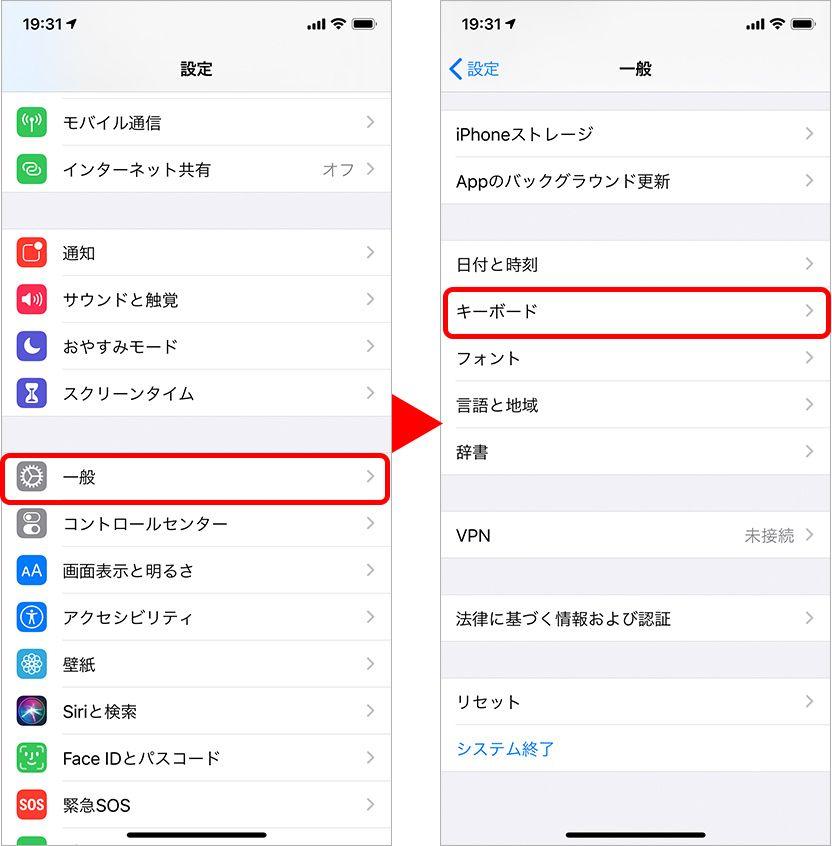
Check if you have sufficient storage space for the YouTube app and associated tools. Adjust security settings to allow installations from unknown sources, and backup critical data to prevent loss during the installation process.
Method 1 — Install YouTube Using AppGallery
Opt for dependable methods involving Huawei’s AppGallery paired with either GBox, microG, or simply a browser shortcut for fast access.
Option A: AppGallery + GBox setup
1. Open AppGallery and search for the GBox app.
2. Install GBox to create a Google framework environment on your device.
3. Within GBox, search for and install YouTube.
4. Log in with your Google account through GBox.
5. Enjoy YouTube’s functionalities with GBox’s integration ensuring smoother operation.
Option B: AppGallery + microG / microG Companion
1. Locate microG within AppGallery.
2. Download and install it alongside the microG Companion app.
3. Configure microG to spoof GMS services.
4. Install YouTube through AppGallery.
5. Log in and verify working features via microG’s framework.
Option C: AppGallery web shortcut or browser method
1. Find a reliable browser such as Opera or Firefox.
2. Bookmark YouTube’s web version for easy access.
3. Create a shortcut on your home screen for one-tap opening.
4. Use the browser for streaming without direct app dependencies.
AppGallery Method: Pros, Cons, and Who It’s For
Why AppGallery tools feel more stable
AppGallery offerings integrate well within Huawei’s ecosystem, leveraging native compatibility and consistent updates, limiting disruptions that might occur with APK files.
Common limits you should expect
Expect some features missing compared to GMS-dependent YouTube apps, such as login complexities and sometimes lagging updates.
Method 2 — Install YouTube by APK
This approach involves downloading verified APK files to workaround the absence of AppGallery solutions, offering an official app-like feel.
Where to download YouTube APK safely
Stick to reputable sources like APKMirror or APKPure to download YouTube APK files. Avoid downloading from suspicious sites to prevent security risks.
How to install the APK correctly on Huawei
1. Navigate to a trusted APK source.
2. Download the latest YouTube APK version.
3. Adjust your phone’s settings to allow unknown installations.
4. Locate the APK file and proceed with installation.
5. Verify functionality and resolve any access permissions.
How to update YouTube APK without breaking the app
Regularly check your APK source for updates, and re-download newer versions to stay current without compromising app stability or security.
APK Method: Pros, Cons, and Who It’s For
When APK wins
Using APK files grants access to newer YouTube features quickly than waiting for AppGallery updates, simulating a direct app experience similar to GMS-dependent versions.
When APK is risky
Risks include potential security vulnerabilities, broken updates, or counterfeit APK files that could harm your device integrity.
AppGallery vs APK: Which One Should You Choose?
Side-by-side comparison checklist
Assess preferred methods based on user experience, security considerations, and update regularity. AppGallery offers smoother integration, while APKs promise rapid feature access but demand careful management.
Real-life scenarios: students, travelers, creators, casual users
Students and travelers might prefer AppGallery for seamless connectivity, whereas content creators may opt for APKs to access cutting-edge features immediately. Casual users should weigh convenience against security.
Extra Options You Can Try
YouTube in a browser with the best settings
Choose efficient browsers designed for multimedia playback, like Opera, and configure settings to enhance streaming quality and reduce data usage.
YouTube Lite tools and third-party clients
Explore YouTube Lite versions or third-party clients vetted for security, bypassing heavier apps for faster operations on lower-end devices.
Optional: Installing Google Play Store on Huawei
What the Huawei Community guide covers
Huawei’s community often shares “unofficial” guides to enable Google Play Store access, offering detailed instructions and troubleshooting tips.
Risks, account safety, and when to skip this method
Installing Google Play Store might pose risks, such as account vulnerabilities or compromised device security, preferring native alternatives when such stakes outweigh benefits.
Conclusion
Choosing the best method to install YouTube on Huawei depends on your priorities. AppGallery provides stable integration and fewer disruptions, while APK allows access to new features at the risk of potential security issues. Each option caters to different user needs, ensuring everyone can enjoy YouTube regardless of the device they use.